- Meeting workspaces don't use default.master. They use MWSdefault.master. Base the master page for meeting workspaces on MWSdefault.master as it has extra functionality specific to meeting workspaces.
- When setting the master page programatically, you need to set two properties as follows:
web.MasterUrl = "something.master";
web.CustomMasterUrl = "something.master";
For sites based on other site templates I only had to set web.MasterUrl.
Wednesday, May 14, 2008
Branding meeting workspaces
I recently had an issue where I created a master page and tried to apply it (using feature stapling) to sites based on meeting workspace site templates. The lessons learnt from this were:

Monday, May 12, 2008
How to get started as a SharePoint developer
List of skills and resources in this linked blog on Getting Started with SharePoint Development
Wednesday, May 7, 2008
Dispose of SPWeb and SPSite objects
When coding in SharePoint you should ALWAYS dispose of SPWeb and SPSite objects. They use a small amount of managed code and a large amount of unmanaged code. As a result of the small managed code, the garbage collector doesn't clear out the items from memory which can lead to a world of pain...
Best Practices: Using Disposable Windows SharePoint Services Objects
Best Practices: Using Disposable Windows SharePoint Services Objects
Web Parts and User Controls
UPDATE 4 July 08: Came across an article by Damon Armstrong about Simplifying Web Part Development using templated web parts. Pretty cool way of doing user controls with web parts. End of update.
I wanted to create a webpart but be able to design it visually in Visual Studio. I was thinking that to do this should be easy - I can just create a web user control, and then wrap the web part around. Was it easy? Kind of.
I also wanted to have this web part in a Sharepoint solution (ie .wsp file).
The approach I took was as follows:
1. Use STSDEV to create a solution with a web part feature. I'm a big fan of this tool!!!!
2. Create the user control .ascx file and add it into the folder structure created in the STSDEV tool. I added it to the TEMPLATE > CONTROLTEMPLATES folder.
3. Programatically added the user control to the webpart.
4. Deployed the solution.
I am going to focus on points 2 and 3 above. There are plenty of good articles out there already on how to use STSDEV to create solutions and features.
Creating the User Control
To create the user control I just added in a new file to the project called SiteList.ascx. At the top of the file I added in the @Control directive as follows:
"< %@ Control Language="C#" AutoEventWireup="true" CompilationMode="Always" % >"
Note that I am not using a code behind file.
I then added the rest of the code to this file as follows:
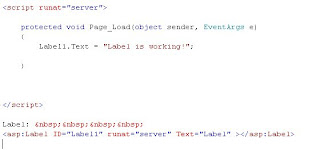
The solution (using STSDEV) will deploy this SiteList.ascx to the 12 hive\Template\ControlTemplates folder.
Adding the user control to the web part
This bit is easy. Just write the CreateChildControls() method as follows:
protected override void CreateChildControls() {
UserControl sitelist = (UserControl)Page.LoadControl(@"/_controltemplates/SiteList.ascx");
Controls.Add(sitelist);
That's it. It is a very simple example but it works for me.
I wanted to create a webpart but be able to design it visually in Visual Studio. I was thinking that to do this should be easy - I can just create a web user control, and then wrap the web part around. Was it easy? Kind of.
I also wanted to have this web part in a Sharepoint solution (ie .wsp file).
The approach I took was as follows:
1. Use STSDEV to create a solution with a web part feature. I'm a big fan of this tool!!!!
2. Create the user control .ascx file and add it into the folder structure created in the STSDEV tool. I added it to the TEMPLATE > CONTROLTEMPLATES folder.
3. Programatically added the user control to the webpart.
4. Deployed the solution.
I am going to focus on points 2 and 3 above. There are plenty of good articles out there already on how to use STSDEV to create solutions and features.
Creating the User Control
To create the user control I just added in a new file to the project called SiteList.ascx. At the top of the file I added in the @Control directive as follows:
"< %@ Control Language="C#" AutoEventWireup="true" CompilationMode="Always" % >"
Note that I am not using a code behind file.
I then added the rest of the code to this file as follows:

The solution (using STSDEV) will deploy this SiteList.ascx to the 12 hive\Template\ControlTemplates folder.
Adding the user control to the web part
This bit is easy. Just write the CreateChildControls() method as follows:
protected override void CreateChildControls() {
UserControl sitelist = (UserControl)Page.LoadControl(@"/_controltemplates/SiteList.ascx");
Controls.Add(sitelist);
That's it. It is a very simple example but it works for me.
Tuesday, May 6, 2008
Remix 08 Sydney
I'm looking forward to attending the Remix 08 conference in Sydney later this month to learn more about Silverlight and Expression Blend with a view to creating web parts for SharePoint that use it. Should be fun.
Subscribe to:
Comments (Atom)